Protect a surface
You can use the Overcut Protection feature in Trimble Earthworks to protect the finished grade of a surface you're working on. This is especially useful when you're working up against (or across) a change in grade in the design.
EXAMPLE – You might be moving material across the toe of a batter slope.
If you enable Overcut Protection and engage Autos, the blade tips won't be able to go below the finished level of the design you're working to. This makes it quick and easy to work across changes in grades in a design without compromising the final surface.
EXAMPLE – Overcut Protection is useful if you're building a swale and you need to finish it off with a layer of topsoil. If you're trying to move the material from the bottom of a swale to the top and over the grade break, the blade tip won't be able to pierce the design surface.
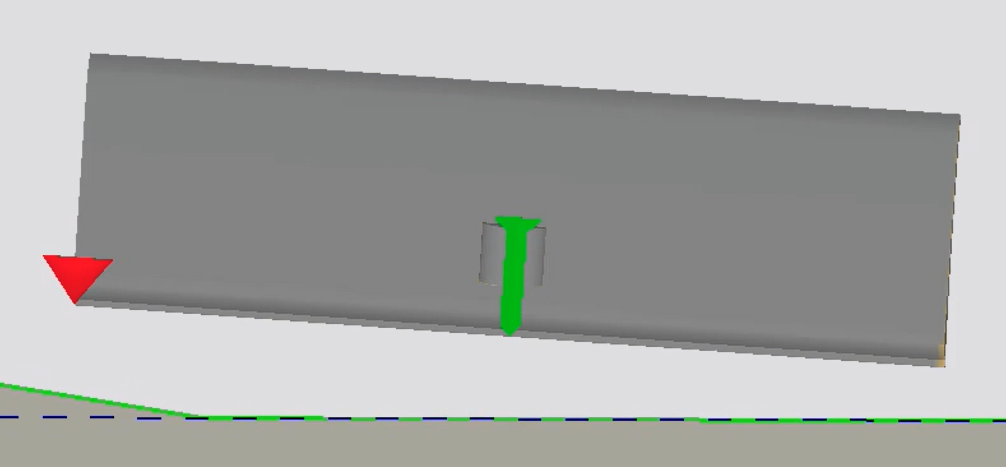
EXAMPLE – In the following image the blade is straddling a change in grade. Overcut protection is off. The Design Line Preview overlay (dashed blue line) is enabled. It shows the design slope the blade will drive to when you engage Autos. The left blade tip will undercut the batter slope and damage the finished grade.
Watch the video
Step by step
To enable Overcut Protection:
-
Tap and hold the Blade Focus
 icon.
icon.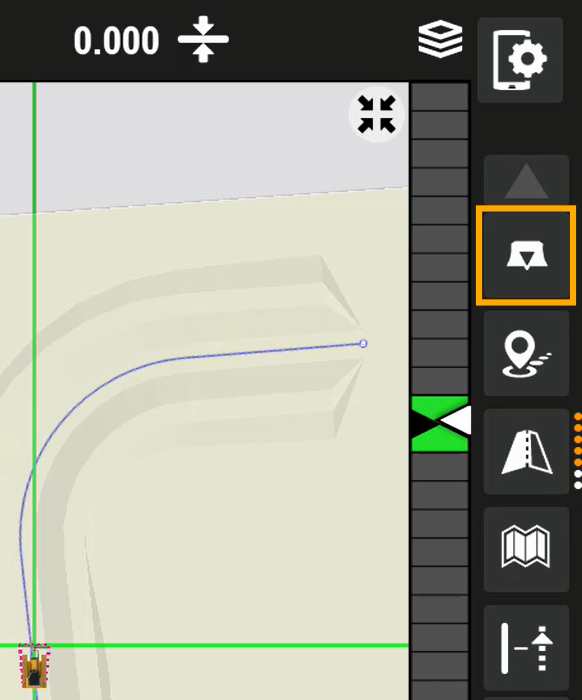
-
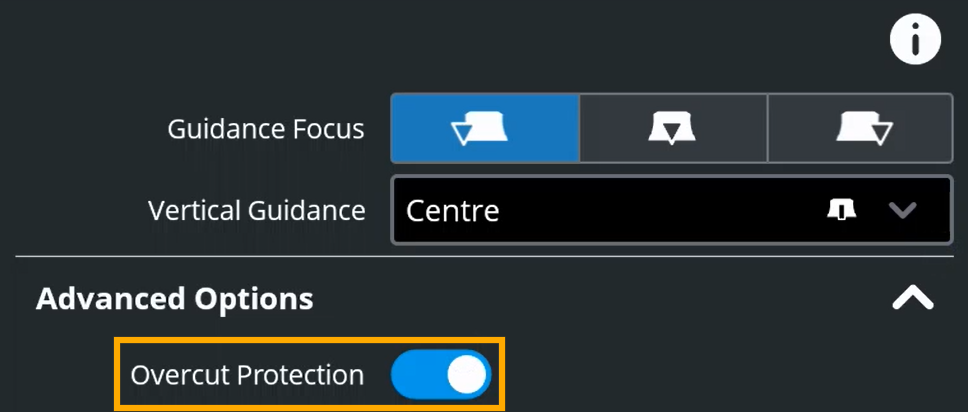
Expand the Advanced Options drop-down.
-
Toggle Overcut Protection on.
-
Tap Apply.
-
Engage Autos and start moving dirt!
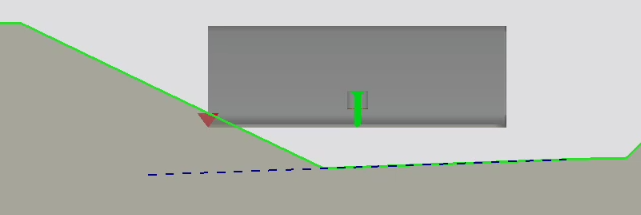
EXAMPLE – The following image shows the blade is straddling a change in grade. Overcut protection is on.
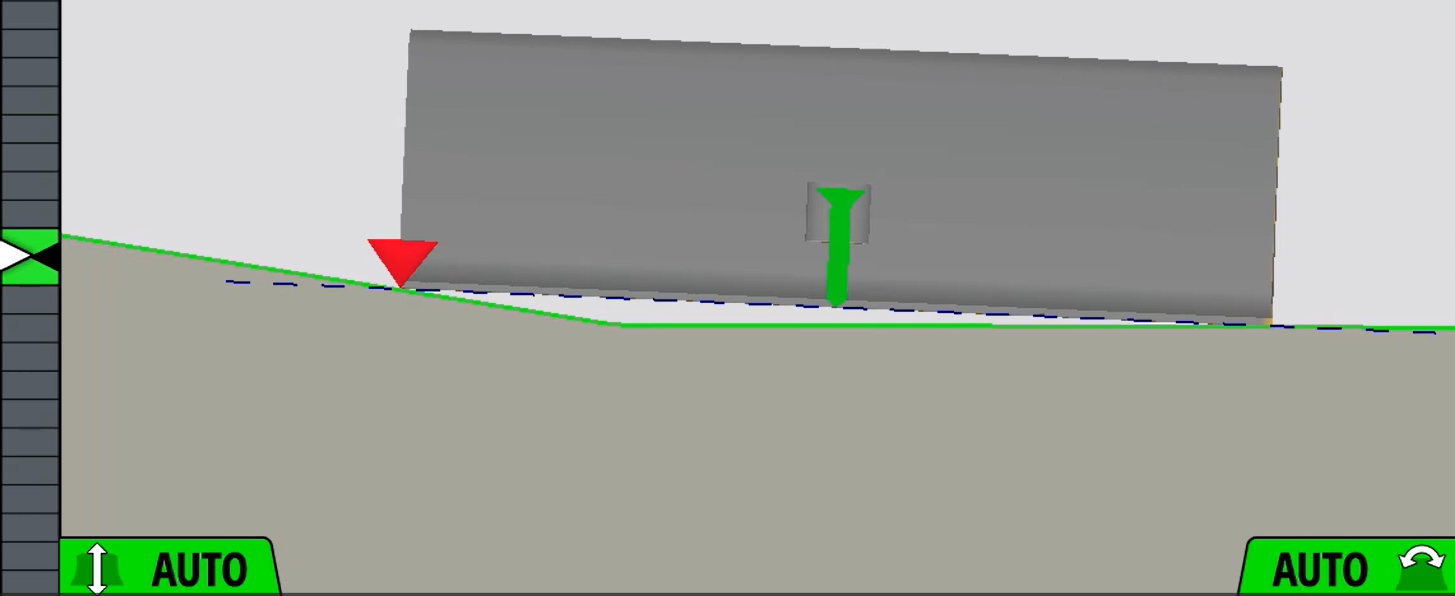
The Design Line Preview overlay is enabled. It shows the design slope (dashed blue line) the blade will drive to when you engage Autos. The design line is being calculated to prevent either blade tip undercutting the batter slope and the floor of the drain. This protects the finished grade.
TIP – When you've finished moving topsoil you can switch Overcut Protection off for your final trim.
Trimble Earthworks v2.24. Updated June 2026.
